
FinOps Onboarding
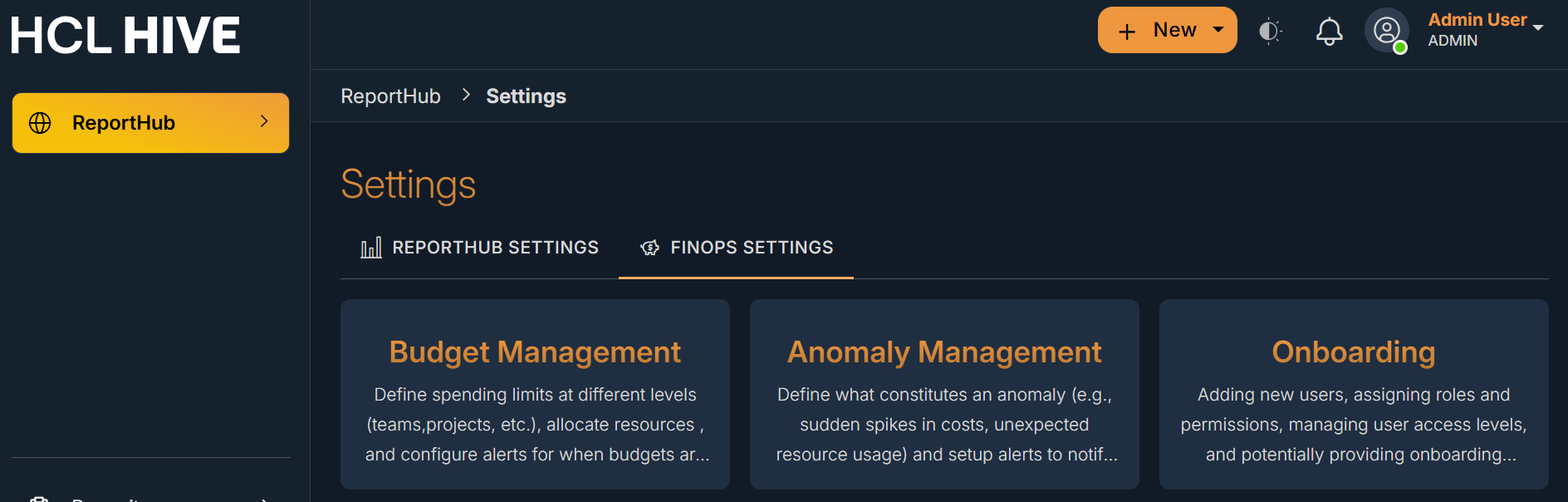
- From the FinOps Settings, select the Onboarding Tile
- Select the cloud provider you want to configure.On Service Selection, tick the providers you want to onboard:
- AWS
- Azure
- GCP
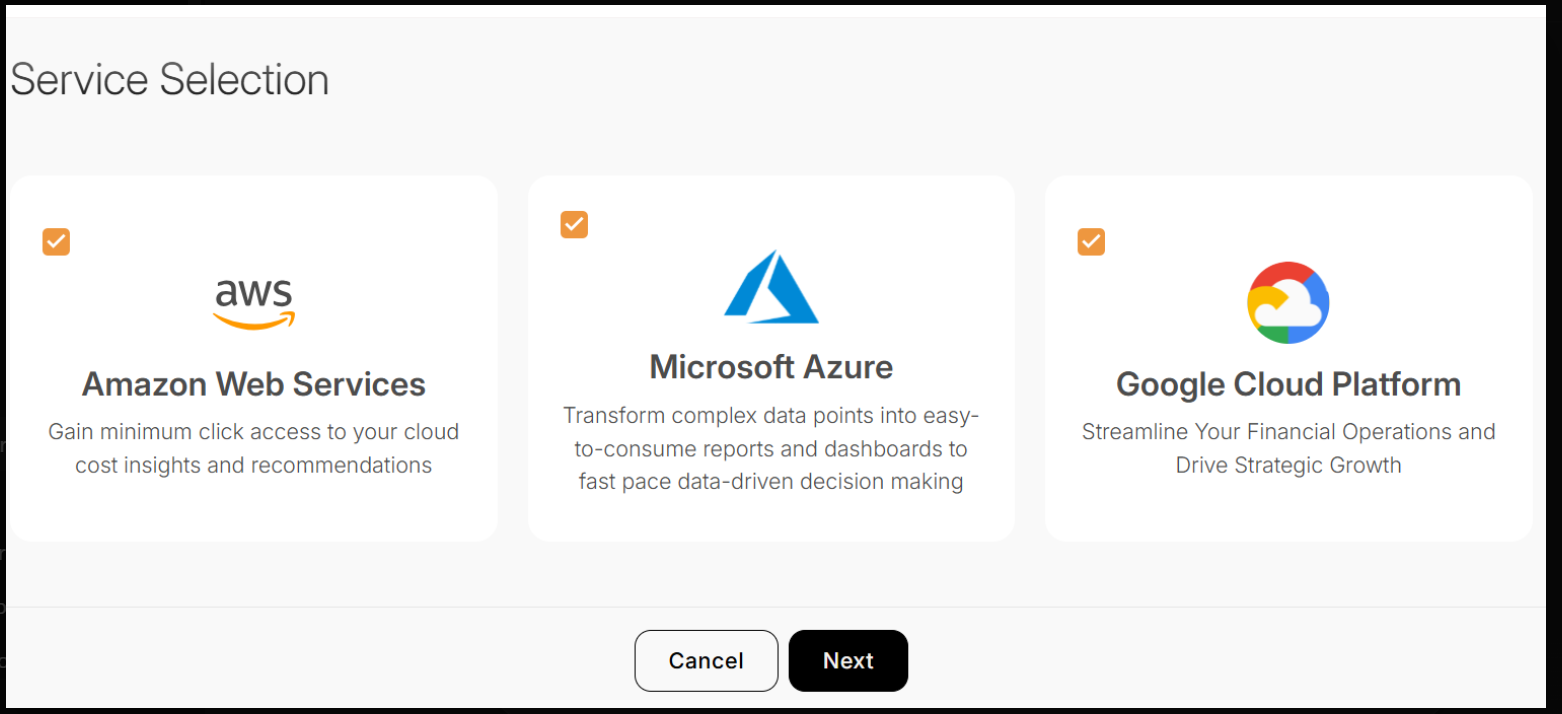
- Click Next.
You can connect one, two, or all three. Each selection opens its own connection page
- Create the Services connections
- A. AWS – Billing connection
-
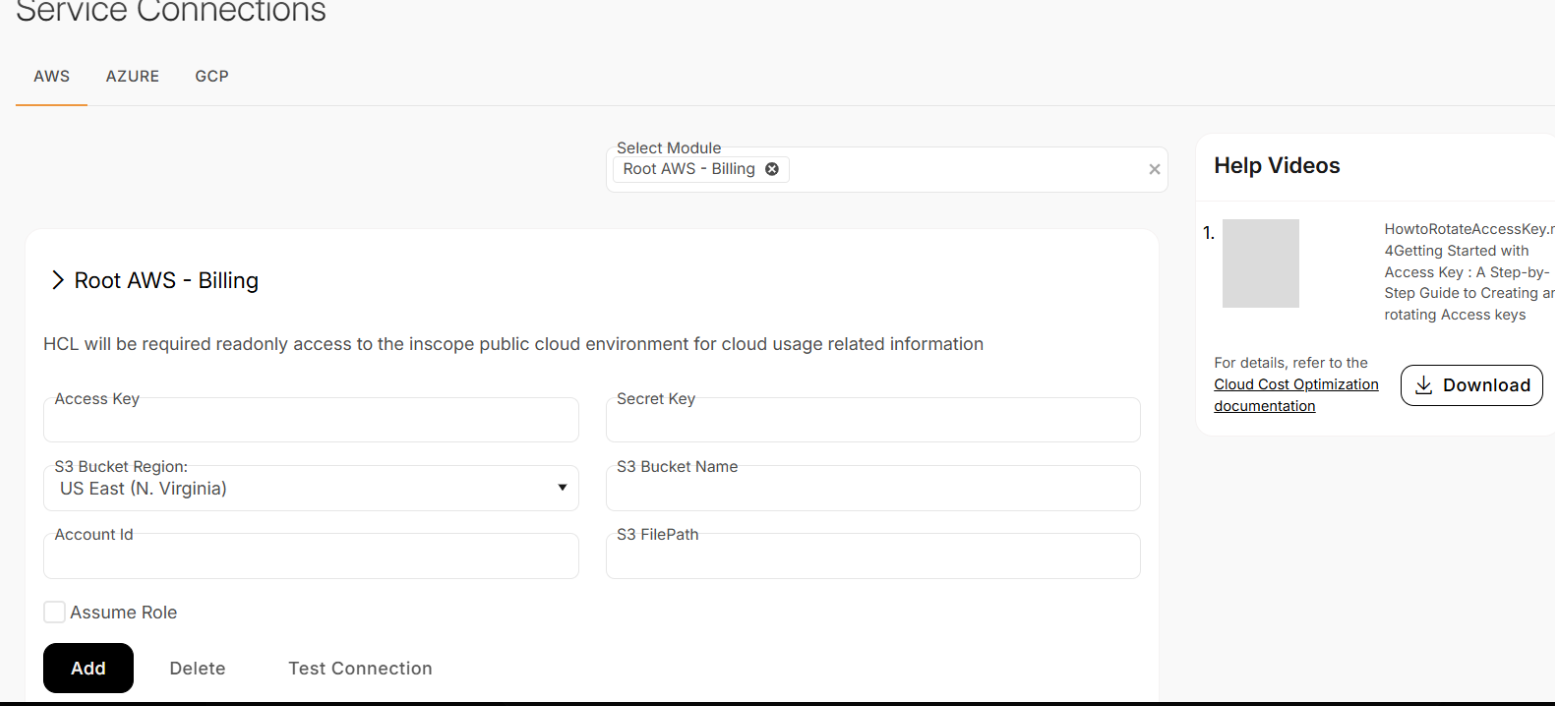
Go to the AWS tab. Module shows Root AWS – Billing.
-
Provide read-only access (least privilege). Enter:
-
-
Access Key and Secret Key
-
S3 Bucket Region (dropdown)
-
S3 Bucket Name
-
Account Id
-
S3 FilePath (path to CUR/billing files)
-
(Optional) Assume Role if your organization uses a cross-account role instead of keys.
-
-
-
Click Add, then Test Connection. Resolve any errors and retest.
- Use the Help Videos panel and Download link for the AWS setup document if needed.
-
- Azure – Cost Management / Billing connection
-
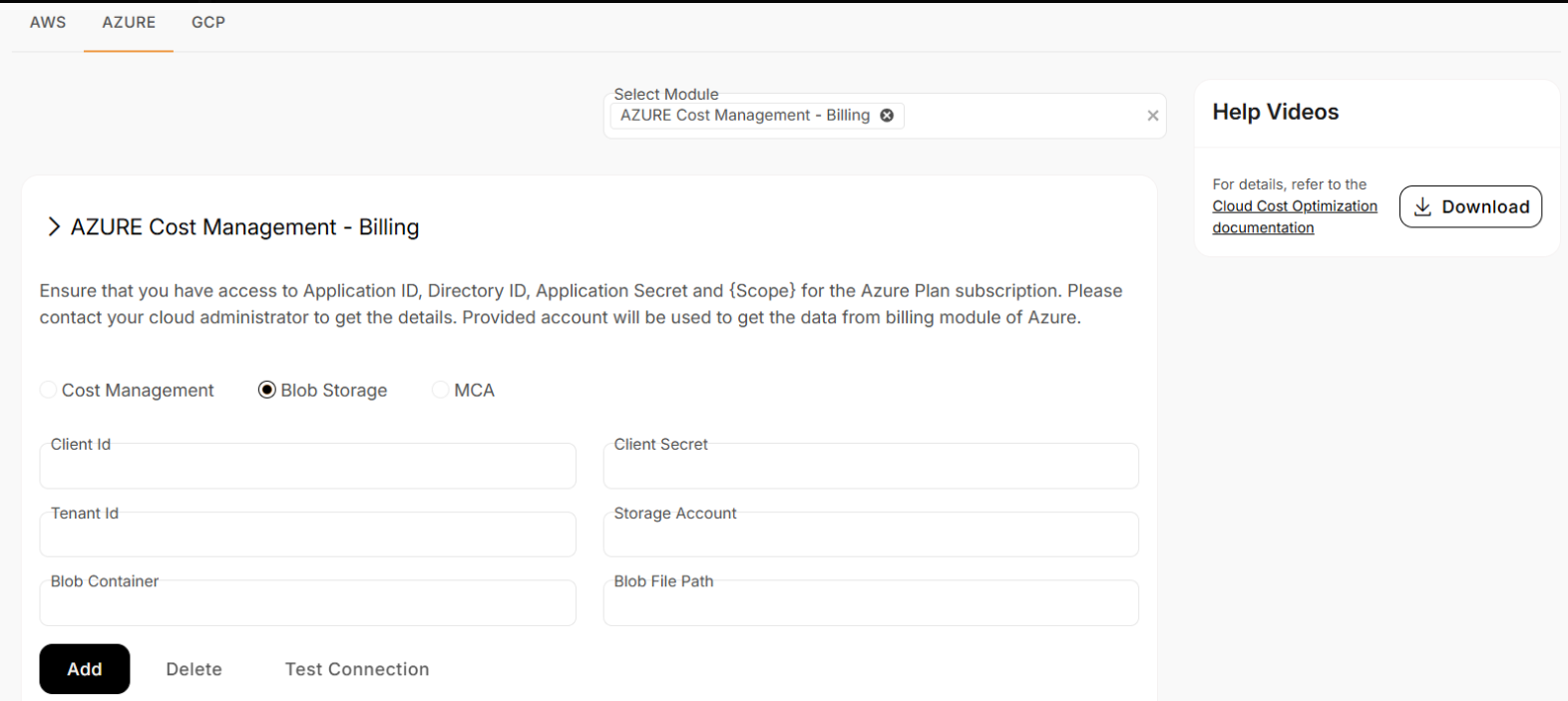
Switch to the AZURE tab. Module: AZURE Cost Management – Billing.
-
Choose the data source you use:
-
Cost Management (pull via API),
-
Blob Storage (shown in screenshot), or
-
MCA (Microsoft Customer Agreement).
-
-
For Blob Storage, fill in:
-
Client Id (Application ID)
-
Client Secret
-
Tenant Id (Directory ID)
-
Storage Account
-
Blob Container
-
Blob File Path (path to exported cost data)
-
-
Click Add, then Test Connection.
- Use Help Videos / Download for the Azure setup document.
-
- C. GCP – Billing connection
-
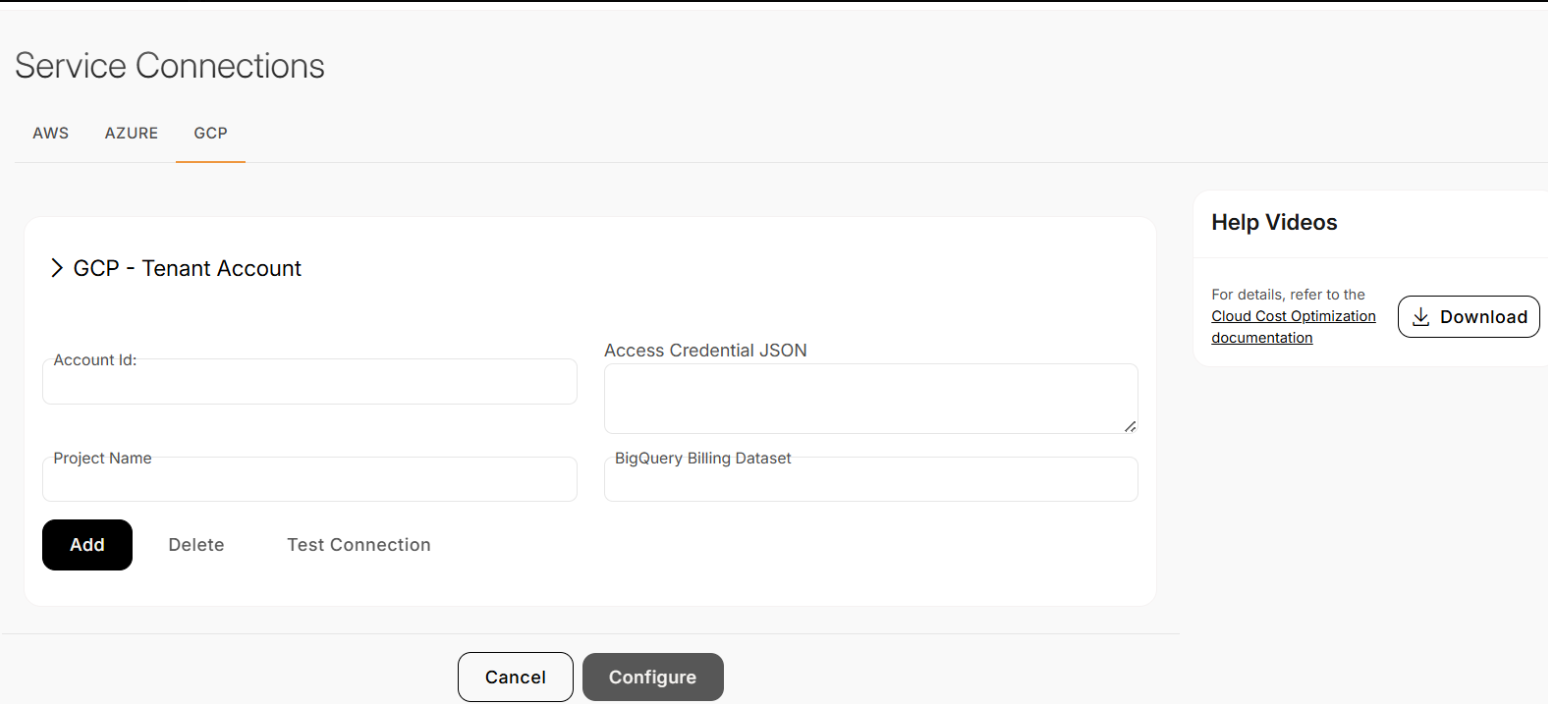
Open the GCP tab (GCP – Tenant Account).
-
Enter:
-
Account Id
-
Project Name (hosting the billing export)
-
Access Credential JSON (service account JSON with read access)
-
BigQuery Billing Dataset
-
-
Click Add, then Test Connection.
- Use Help Videos / Download for the GCP setup document.
-
- A. AWS – Billing connection
- After each cloud passes Test Connection, select Configure (or proceed to the next tab).
- When all required clouds are added, the system will begin ingesting cloud data. Initial loads can take some time depending on data volume.