
Budget Management
Allows users to define and manage spending limits across cloud platforms (AWS, Azure, GCP). It ensures proactive cost control by letting users set budgets, define thresholds, and configure automated alerts.
- From the FinOps Settings, click on Budget Management
.png)
-
This section provides access to budget creation, configuration, and management.
-
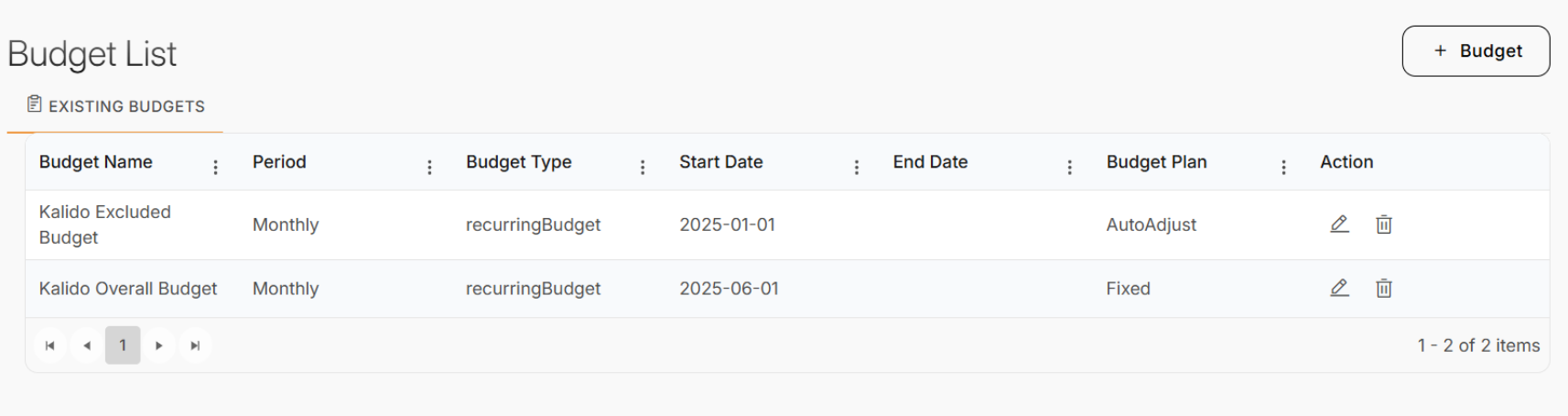
The Budget List displays all existing budgets with details such as:
-
Budget Name
-
Period (Daily, Monthly, Quarterly, Yearly).
-
Budget Type (Recurring or Expiring).
-
Start & End Dates.
-
Budget Plan (Fixed or AutoAdjust).
-
Actions – Edit or Delete.
-
You can create a new budget by clicking the + Budget button
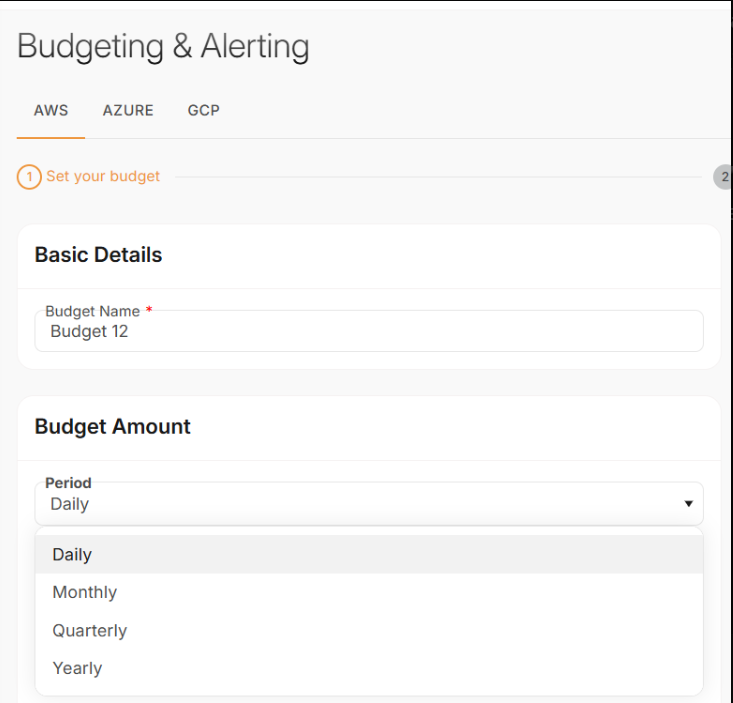
- When you click + Budget, the system takes you to the Budgeting & Alerting wizard.
Step 1 – Set Your Budget
-
Select Cloud Platform: Choose between AWS, Azure, or GCP.
-
Basic Details: Enter a Budget Name (mandatory field).
-
Budget Amount:
-
-
Define the Period: Daily, Monthly, Quarterly, or Yearly.
-
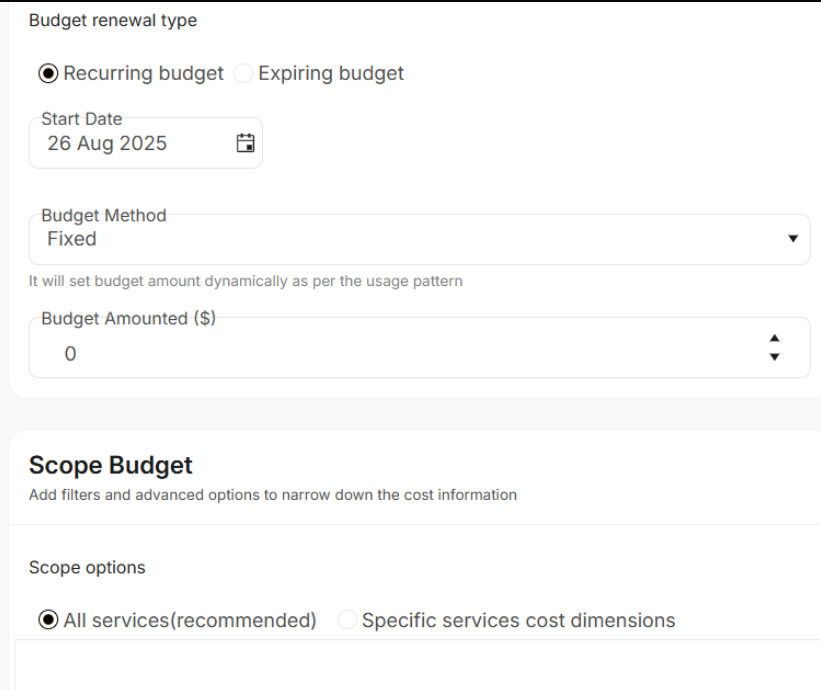
Select Budget Renewal Type:
-
Recurring Budget – resets automatically after each period.
-
Expiring Budget – ends on the specified date.
-
-
Choose Budget Method:
-
Fixed – manually set the budget amount.
-
AutoAdjust – adjusts dynamically based on historical usage.
-
-
Input the Budget Amount (in $).
-
-
-
Scope Budget:
-
Choose All Services (Recommended) or
- Specific Services Cost Dimensions – filter budget by particular services/resources.
-
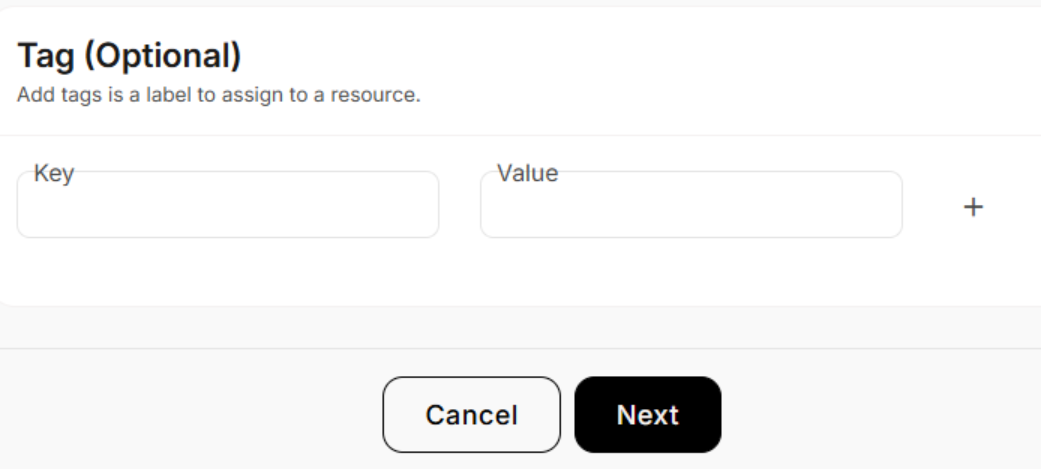
Step 2 – Tagging (Optional)
-
Add Key-Value tags to categorize or group budgets.
-
Example: Key = Department, Value = Marketing.
- Tags improve tracking and reporting.
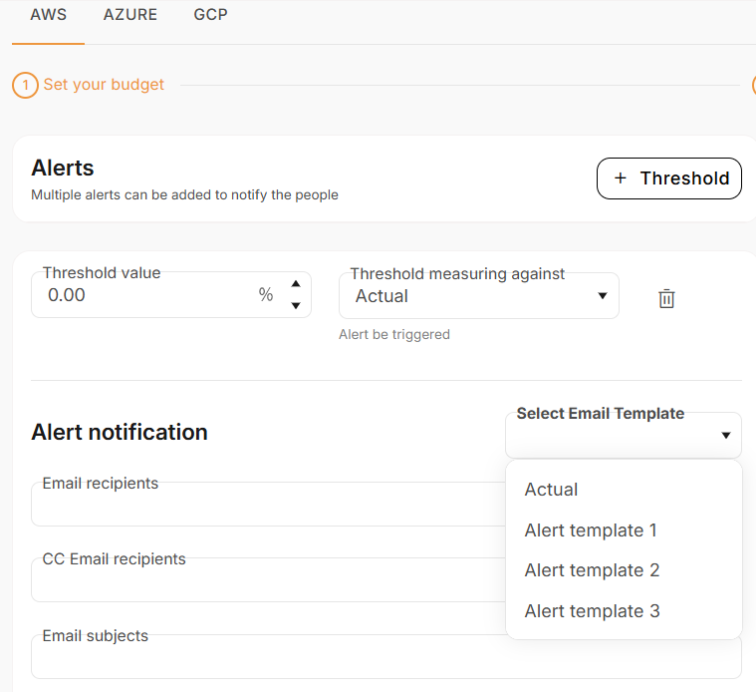
Step 3 – Configure Alerts
-
Thresholds: Define when alerts should trigger.
-
-
Example: 50% usage of budget.
-
Threshold can be measured against Actual Spend.
-
Multiple thresholds can be added.
-
-
-
Alert Notification:
-
Enter Email Recipients and CC recipients.
-
Define Email Subject for the notification.
- Choose an Email Template (default or pre-configured templates).
-
.
Step 4 - Reviewing and Submitting
-
The final screen summarizes the configuration:
-
Budget Name, Period, Start Date, Plan, Amount, and Scope.
-
Alert details including thresholds and notifications.
-
-
Options available:
-
Back – return to the previous step.
-
Cancel – discard changes.
- Submit – save and activate the budget.
-
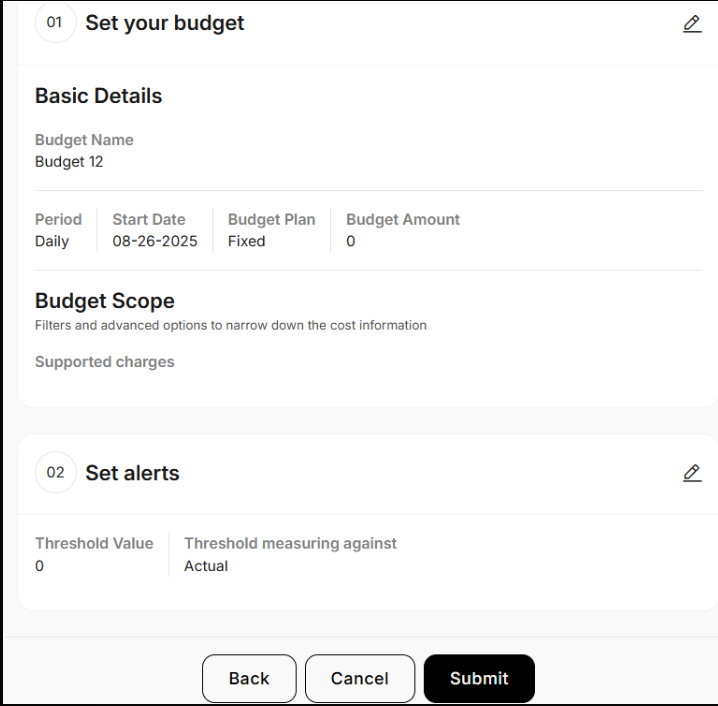
- Once submitted, the new budget will appear in the Budget List.
Managing Existing Budgets
-
From the Budget List, you can:
-
Edit budgets to adjust amounts, scope, or alerts.
-
Delete budgets no longer required.
-
- The system ensures that active budgets continue monitoring costs and trigger alerts automatically