This is a chapter you should print and keep with your latest Scheduler Backup and installer. You'll need these items if you are installing The Scheduler on a new computer or you've had a catastrophic disk crash and have lost The Scheduler. You'll need three items:
1.Your archived bank version installer. Instructions to store the installer in a safe place was printed in red on the download instructions sent.
2.Your latest Scheduler Backup. By default The Scheduler creates a an encrypted ZIP file after each EFT file is created. This file contains all your client information, your banking and organization information, user preferences, and the registration key. The ZIP files are located in the Application Libraries backup folder.
3.These instructions!
Important Note: It is critically import that you keep these items off your computer and stored in a safe location. USB sticks are cheap and following these instructions will have your Scheduler environment restored in minutes.
Step 1 - Install The Scheduler
Locate the saved installation kit on your computer and RUN it.
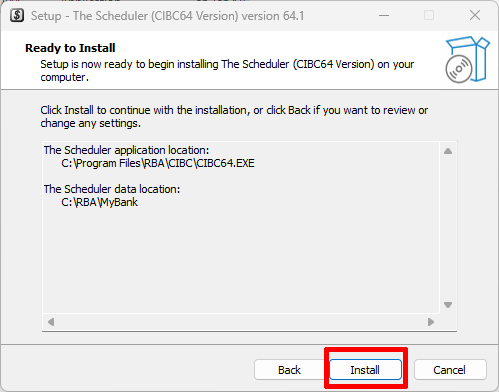
Accept the license agreement to proceed ...
|
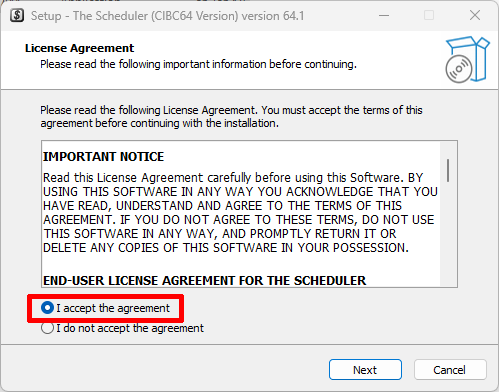
... and choose the "Start In" location where The Scheduler data lives. We suggest leaving the defaults. Network installation instructions in Step 3. |
 and let 'er rip! |
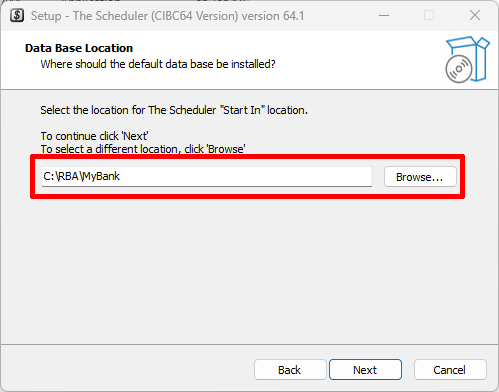
An information panel displays your location parameters. Click the "Install" button to proceed. The Scheduler will be installed on your computer; Start Menu Items are created and a desktop shortcut is created.
|
|

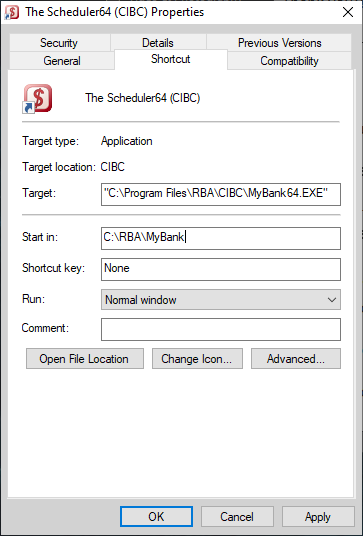
Step 2 - If you have a network environment, go to Step 3... otherwise
Restoring your backup.
Trial Version |
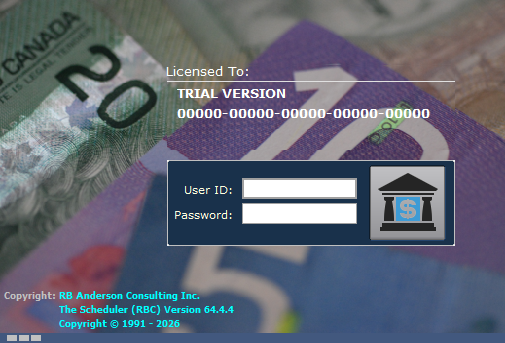
Enter the installation default user id / password combination within the 40 second response time and either press the <Enter> key or click on the bank logo button. The Scheduler will "beep" if an invalid User ID / Password combination is entered and will allow 3 tries. The Scheduler closes if logging on is unsuccessful within the 40 seconds allowed.
Installation default:
User ID: |
ADMIN |
Password: |
V64 |
Copy your archived Scheduler backup to the Application Libraries backup folder.
Click Category buttons Tools > Maintenance > App Environment and the Restore EFT World tab. You should see a screen like the one below.
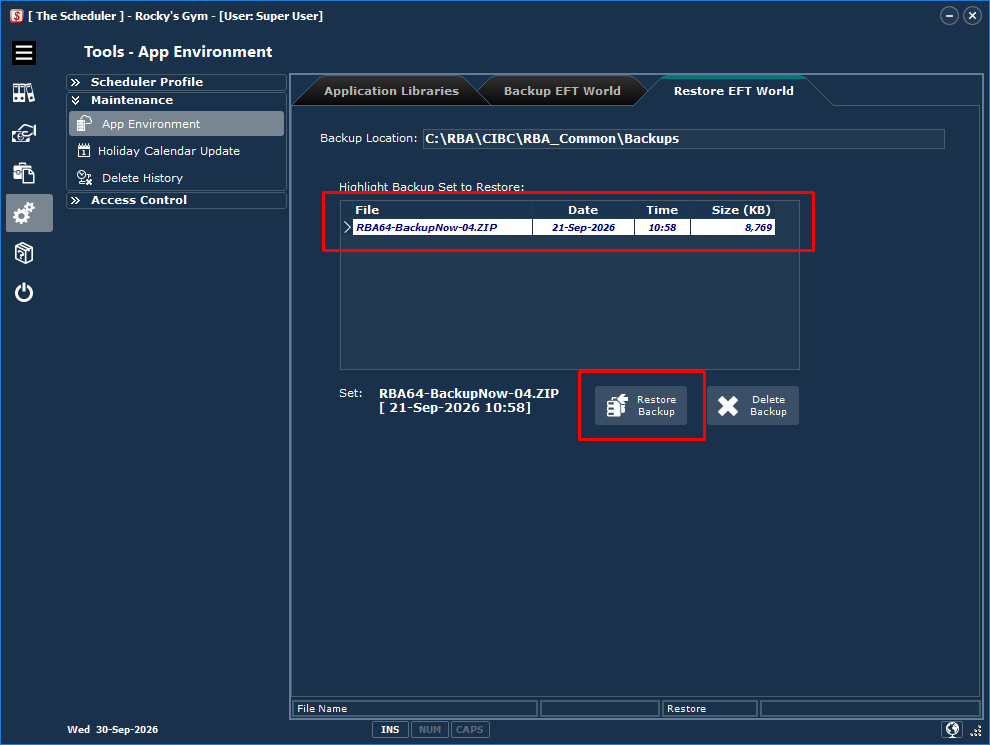
Click the Restore Backup button. The Scheduler will decrypt the ZIP file and restore all your banking information; folders of client transactions; and configuration files. When prompted to replace the "trial" registration key with the one in the backup, click Yes. Once done you will have the following dialog form displayed:
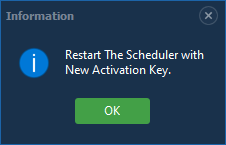
Click OK and you're done! The Scheduler is back in operation.
Important Note: If any additions, changes or deletions were posted after the ZIP file date, they must be re-entered.
Step 3 - Network reconnection
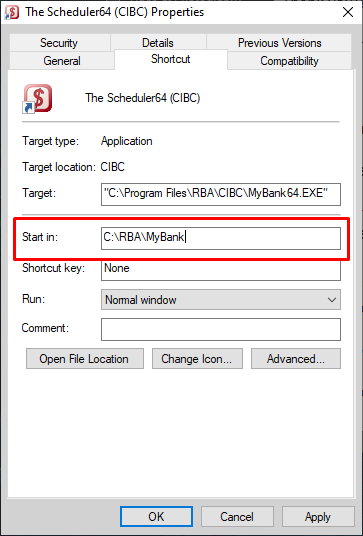
Simply change the default install "Start In" location of the desktop shortcut that starts The Scheduler to the network location with the core of The Scheduler data and The Scheduler is back in operation.
|
|