Click Tools > Scheduler Profile > User Preferences category button sequence to display this information.
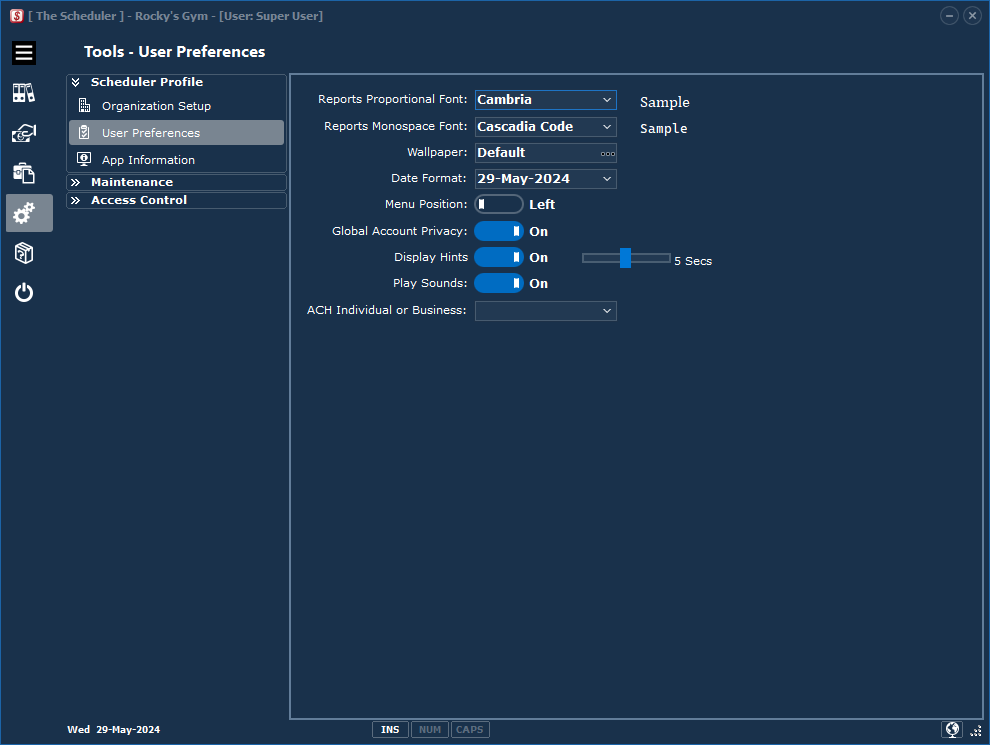
Report Proportional Font: |
Click the list box down arrow to choose your desired font. Sample displayed. |
Report Monospace Font: |
Ditto. |
Wallpaper: |
If you have a favourite photo, you can change the wallpaper on the "Home" screen. See the User Images section for more details. |
Date Format: |
Select how you want dates displayed on The Scheduler forms and reports. |
Menu Position: |
Which side do you want the Category Buttons displayed? |
Global Account Privacy: |
The default in The Scheduler is to obfuscate banking information on reports. This can be changed only by users with "Administrator" rights. See the Access Control section for more information. |
Display Hints: |
Hovering the mouse over input fields will give more information. Turn off or alter the length of the display message. |
Play Sounds: |
Turn off The Scheduler confirmation beeps and warbles. |
ACH Individual or Business: |
This selection will determine the SEC code to use in the ACH version file creation. |
Note: For security and control purposes, RB Anderson Ltd. recommends creating user profiles for each person using The Scheduler. See the Users section to manage access the The Scheduler.
Save your changes
Click the Save Setup button!