Tag That Photo User Guide - Part 2
Scanning, Import, and Face Tagging
Scanning and Importing
Initial Library Scan
When you first add folders to TTP, the scanning process begins automatically. You'll see progress indicators at the bottom right of the screen.

Scanning Timeline
The initial face detection scan is the most time-consuming part of setup. Scanning speed varies based on:
- Image Quality: Higher resolution images take longer
- Minimum Face Size Setting: Smaller sizes require more processing
- Storage Type: Local SSD (fastest) > Local HDD > Network drives > NAS over WiFi (slowest)
- System Performance: CPU speed and available RAM
Typical Performance: 2,500 to 3,500 images per hour on modern systems with SSD storage.
Note: It may take up to 20 seconds after selecting folders for the "facedetection" service to start scanning.
Recent performance upgrades include:
- Automatic scaling of face detection based on available CPU cores
- Non-blocking communication between the app and face detection service
- Faster full-library scans and faster Force Rescan operations on modern PCs
July 2026 scanning resilience: - Large batch scans continue more predictably when other library activity arrives mid-scan (they no longer restart from scratch) - Thumbnails stay available during a force rescan instead of disappearing until work finishes - Unreadable or zero-dimension image files are skipped cleanly during import
October 2026 scan progress: - Files that cannot be read — including zero-dimension images, temporary files, Windows Recycle Bin names ($I… / $R…), and Office lock files (~$…) — still count as done, so a folder full of them does not look frozen - The progress count stays at or below the total, including while faces from an earlier folder walk are processed - If Tag That Photo restarts in the middle of a scan or a folder Force Rescan, that work is picked up again, including photos in subfolders that had not been revisited yet
The status bar names the current task instead of an internal job name. You will see one of:
- Metadata Write
- Scan for Changes (folder scans and file scans share this name)
- Full Scan
- Quality Scan
- Other
The “N of M” count is the files processed in the current pass. These names are translated with the rest of the interface.

New Face Detection Scan Mode
You can now run scans in an Update Existing Faces Only mode:
- Updates previously detected faces without re-adding faces you intentionally deleted
- Useful when you want improved face data without rebuilding unknown-face noise
- Available in rescan workflows where scan mode options are shown

Importing from Other Applications
TTP can import face tags and metadata from other photo management applications.
Importing from Picasa
TTP will import face tags from Picasa if the tags are written into the images. To set up Picasa for compatibility:
- Configure Picasa to write all face tags directly into images
- Visit https://tagthatphoto.com/faqs/ for detailed setup instructions
- Add your Picasa library folders to TTP
- TTP will automatically read and import the face tags during scanning
Importing from Fotobounce
- Select your Fotobounce folder in TTP
- TTP will export the Fotobounce library to an intermediate file
- Metadata is then imported into TTP
Note: Only names and face information are imported from Fotobounce.
Importing from Microsoft Photo Gallery
If you've enabled metadata writing in MS Photo Gallery, TTP will automatically read those face tags during the image scan.
Required MS Photo Gallery Settings:
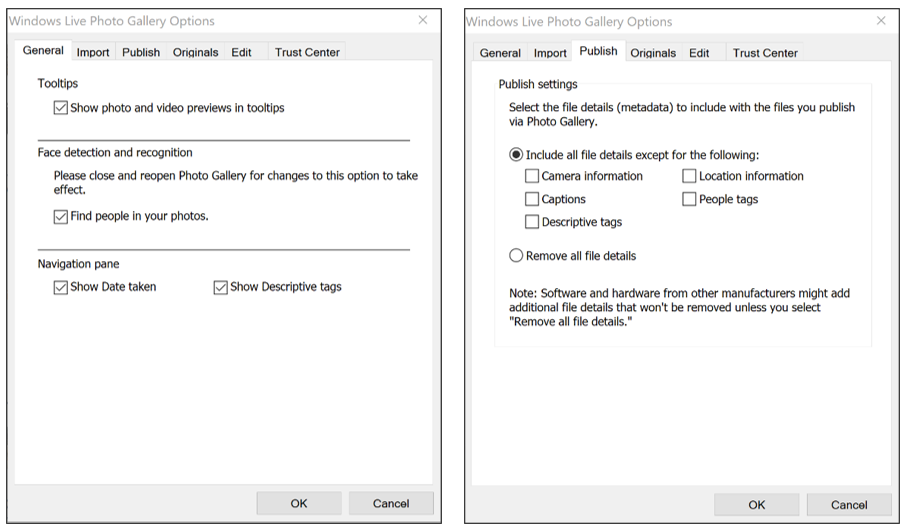
- Enable "Store tags in files"
- Enable "Make tags visible to Windows Explorer"
Face Tagging Workflow
Understanding Face Recognition
TTP uses advanced face recognition technology powered by deep machine learning to match known faces with unknown faces.
How It Works
- Face Templates: Each detected face is converted into a digital signature (face template)
- Likeness Scoring: When two templates are compared, a similarity score is calculated
- Suggestion Threshold: If the score exceeds your configured threshold, it becomes a suggestion
- Clustering: Unknown faces with similar templates are grouped into clusters
- Progressive Learning: As you tag more faces, TTP gets better at making accurate suggestions
Favorite Faces System
TTP limits the pool of face templates used for suggestions to improve speed and accuracy:
- Initially, TTP auto-selects up to 50 high-quality faces per person as "favorites"
- You can manually adjust favorites, adding up to 50 more (100 maximum per person)
- Only favorite faces are used to generate suggestions
- This focuses recognition on the best quality face examples
Best Practice: Periodically review favorite faces for each person. Poor quality favorites lead to poor suggestions.
The Three Face Views
TTP organizes faces into three main tabs based on their status:
1. People Tab
In the latest version, the People Tab can be opened alongside the main TTP workspace. There is a small arrow icon at the top left, that will trigger the separate People window. This is handy for people with large screens or multiple screens. The People tab shows all identified people in your library. Each person displays: - Profile thumbnail (representative face) - Person's name - Number of tagged faces - Suggestion indicator icon (when pending suggestions exist)
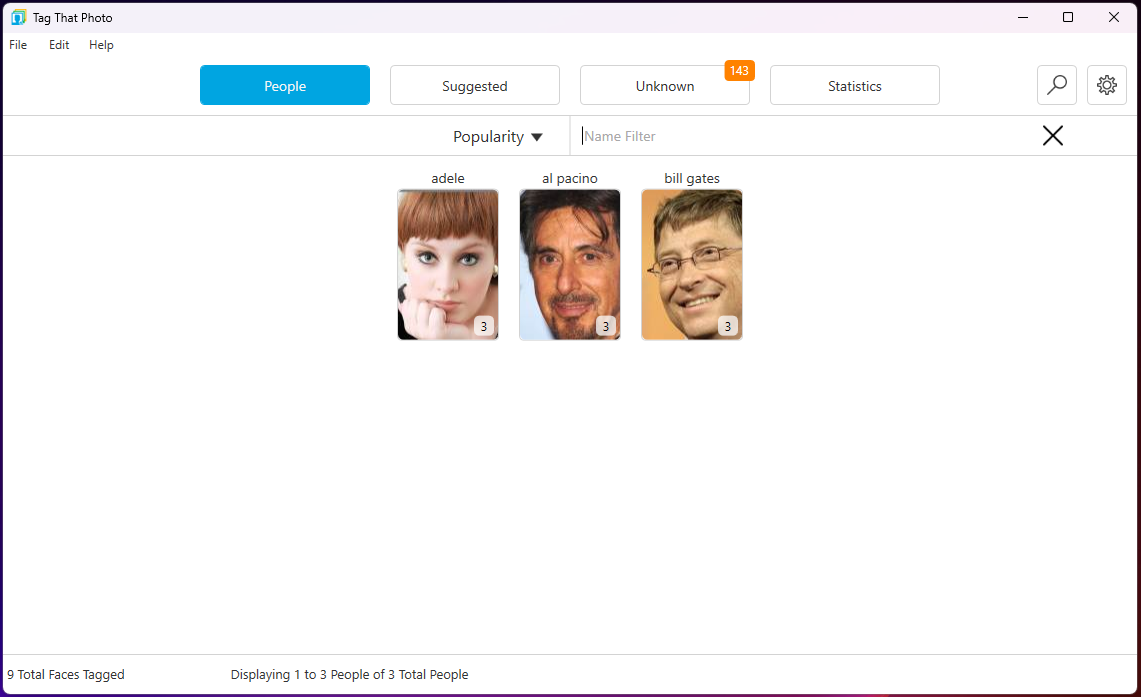
Note: Visual indicators now appear on thumbnails when that person has pending suggestions, making it easy to see who needs attention.
Sorting Options: - Alphabetically by name - By popularity (most faces) - Filter by typing part of a name
Quick Access to Suggestions: - Press CTRL-T with a person selected, OR - Right-click and select "View Suggestions"
2. Suggested Tab
Shows faces that TTP thinks it recognizes based on similarity to known people.
New in July 2026 - Person Deck: Suggestions now opens on a scrollable deck of person cards instead of stepping through one suggestion group at a time. Each card shows the person and how many pending suggestions are waiting for them. Pick a person to open a focused review screen for that person's suggestions only.
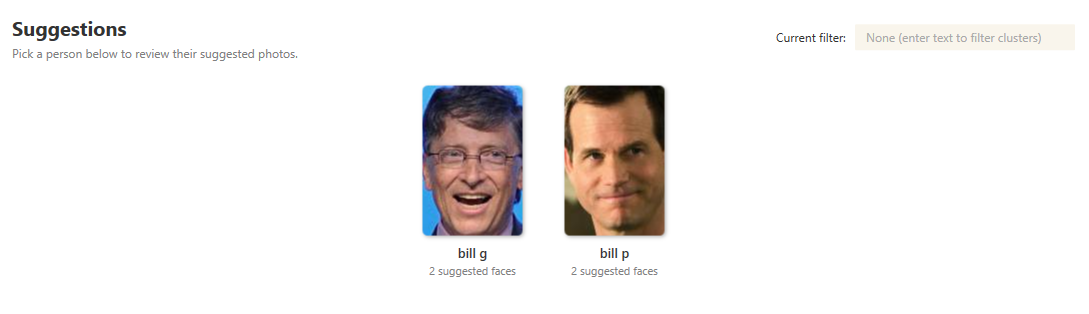
Lone Faces card: People with exactly one pending suggestion are gathered into a single Lone Faces card. Open it to review and commit those one-off matches together, instead of hunting for each person individually.
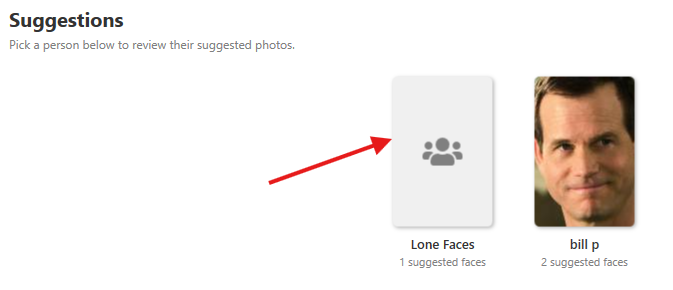
Review workflow:
- Open the Suggested tab to see the person deck
- Optionally filter the deck by typing part of a name
- Click a person card (or Lone Faces) to review that set of suggestions
- Confirm, reject, remove, reassign, or save faces for later
- Click Back to All Suggestions to return to the deck and pick the next person
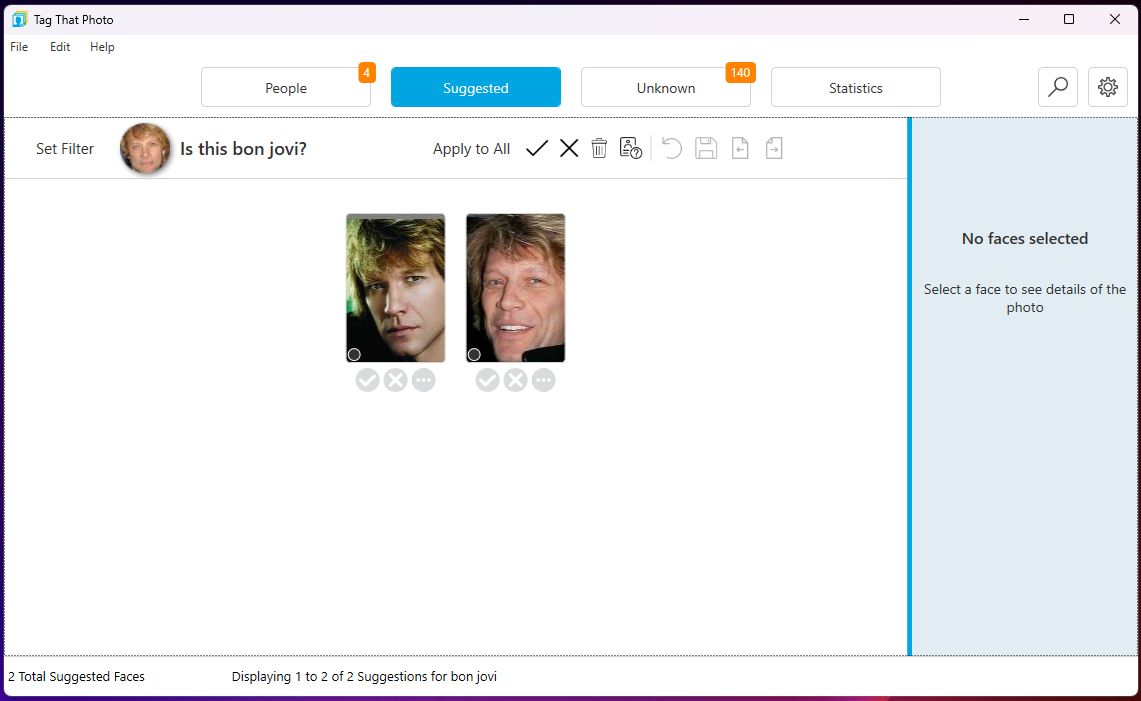
On the review screen, your job is to: - Confirm correct suggestions (CTRL-K or click button) - Reject incorrect suggestions (CTRL-X or click button) - Remove faces you don't want to tag (DEL or click button) - Rename / Assign to Another if the face is someone else (CTRL-N or Assign to Another button) - Save for Later when you are not ready to decide
Dynamic Action Buttons & Tooltips: Action buttons adapt to your current selection: - No faces selected: Buttons operate on the entire group (e.g., Confirm Suggestions, Reject Suggestions). - One or more faces selected: Buttons update to show the selection count (e.g., Confirm Selected (3), Reject Selected (3)).
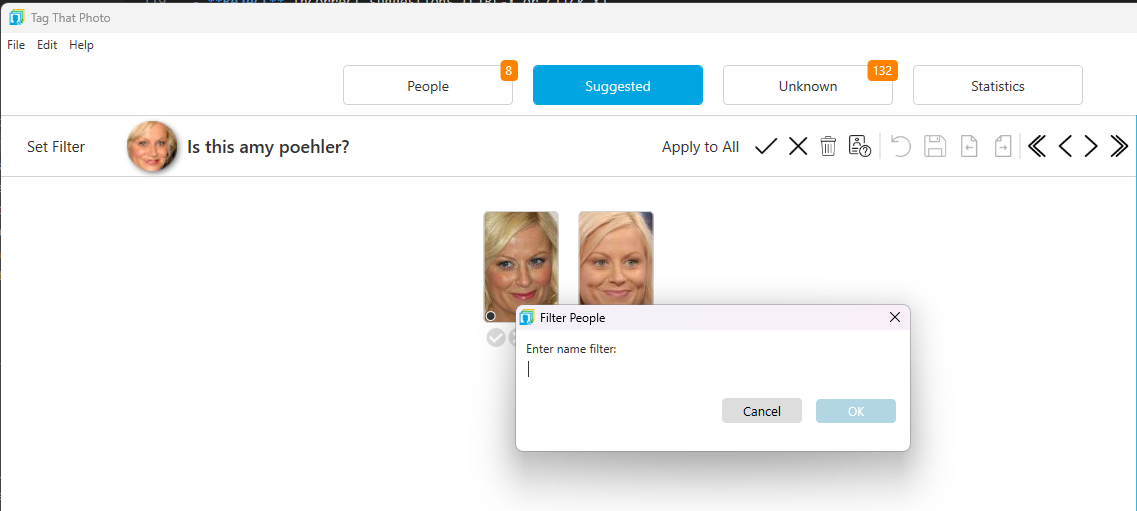
Filter the person deck:
When many people have suggestions:
- Type part of a name (e.g., "Smith" or "John") into the filter on the Suggestions deck
- Only matching person cards remain
- Open a card, process those suggestions, then return with Back to All Suggestions
- Clear the filter to see the full deck again
Mini-Collage Reference:
Click the suggested person's name to see a mini-collage of up to four reference faces:
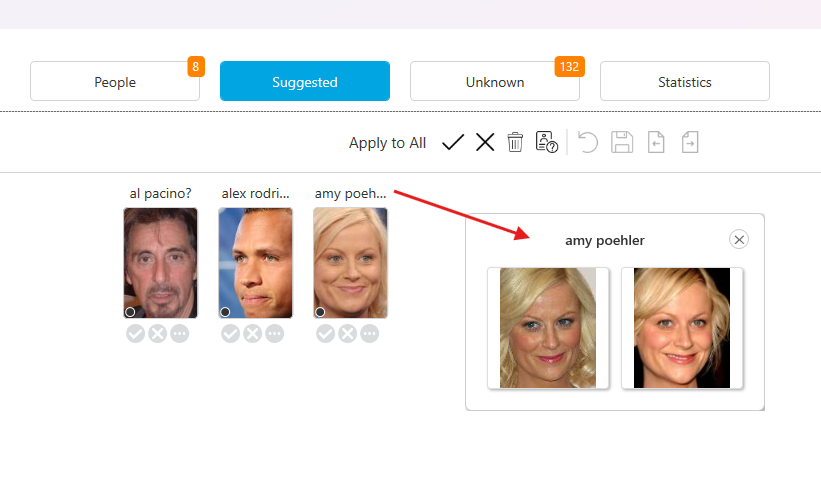
This visual reference helps you confirm identity with more confidence, especially when: - People have similar features - Photo quality varies significantly - You're working with childhood photos where appearance changes over time
Quick Access from People: - Press CTRL-T with a person selected, OR - Right-click and select "View Suggestions"
Either path jumps you into that person's suggestion review (same focused screen as picking their card from the deck).
3. Unknown Tab
Shows faces that TTP doesn't recognize yet, organized into clusters of similar-looking faces.
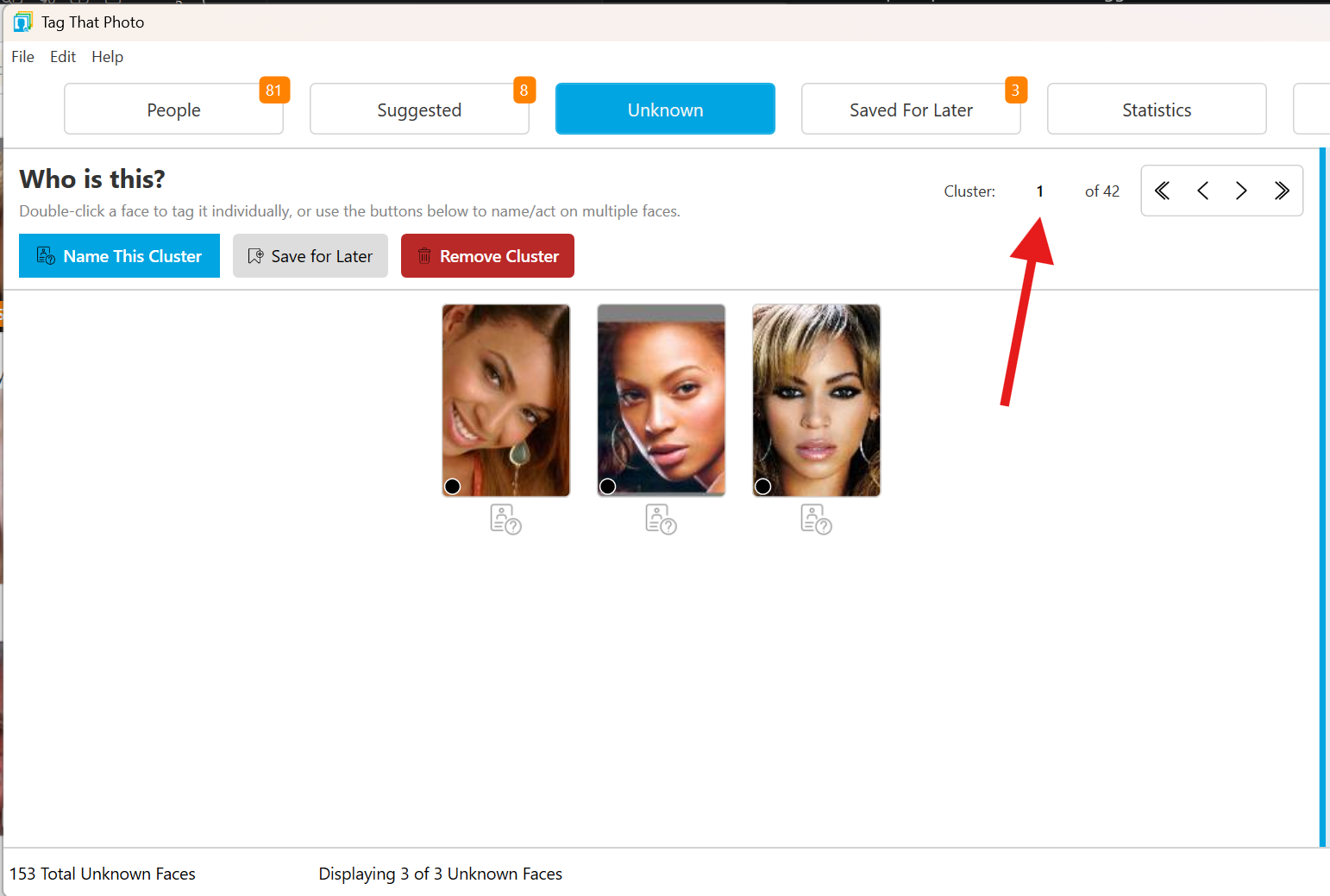
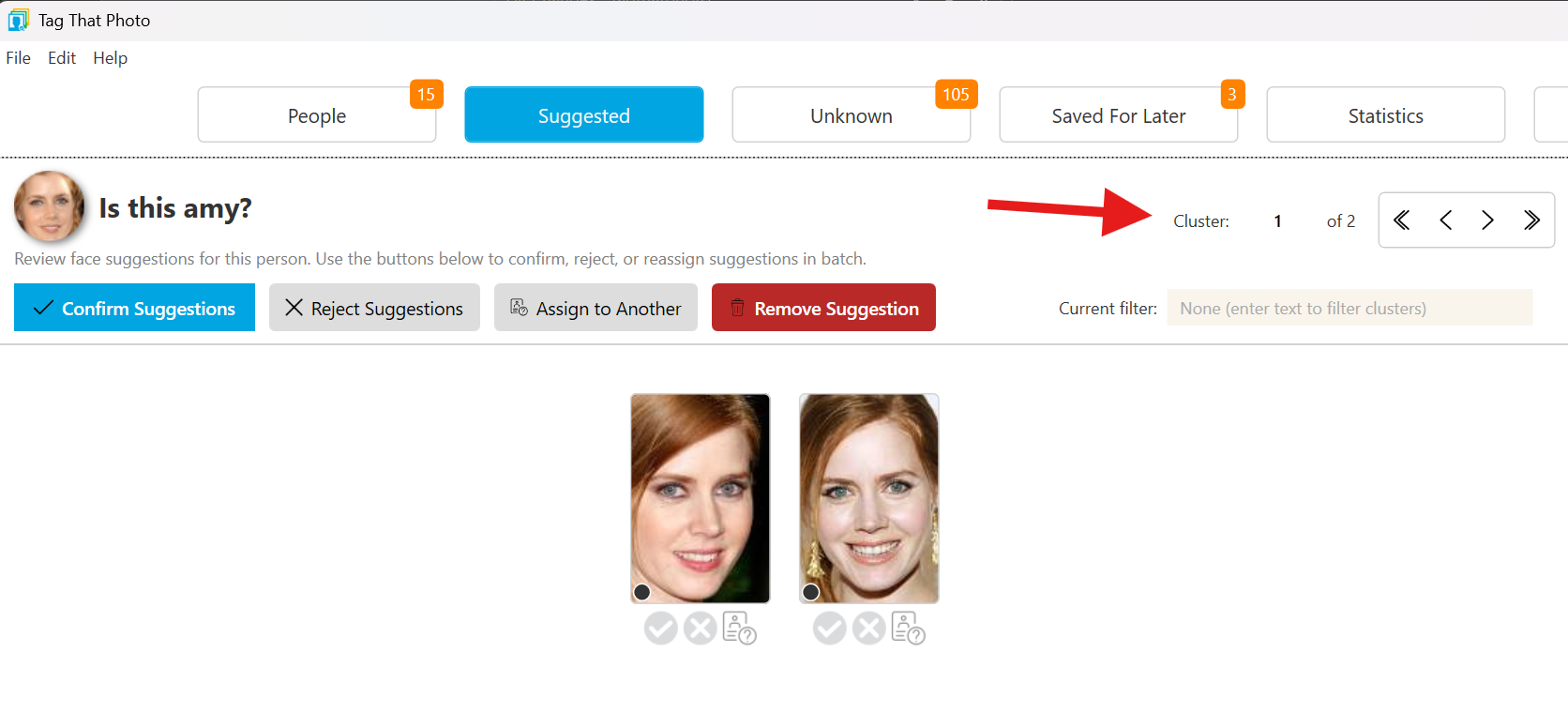
The Unknown workspace now includes an onboarding subtitle that clarifies the core flow: double-click a face to tag individually, or name the whole cluster. Action controls use clearer labeled button styles (primary/secondary/danger) so high-impact actions are easier to identify at a glance. Cluster navigation is centered and explicit (< Previous Cluster, Cluster X of Y, Next Cluster >) to make movement through backlog clusters more obvious. Each face thumbnail includes a visible checkbox overlay in the top-left corner so selection scope is clear before batch actions are applied.
Organization: - Largest clusters appear first - Single-face clusters appear after multi-face clusters - Move between clusters with Tab / Shift+Tab, the cluster buttons, or Alt + mouse wheel - Use arrow keys to move among faces on the current page, and Page Up / Page Down (or the mouse wheel) to page faces inside the current cluster, Lone Faces, or Save for Later
- << (Go to First): Jumps to largest cluster
- >> (Go to Last): Jumps to smallest clusters
Use these shortcuts when you have thousands of unknowns and want to efficiently process the largest groups first.
New in June 2026 - Dynamic Selection & Tooltips: Action buttons on the Unknown tab are fully dynamic. Selecting any number of face thumbnails immediately changes the primary button label to reflect your selection (e.g., Name Selected (4) or Save Selected for Later (4)). Tooltips dynamically update to clarify the scope of your action.
New in June 2026 - Jump to Cluster Index: Quickly jump directly to any cluster index by typing into the Jump to Cluster input box. The field validates the entry to ensure it's a valid index between 1 and the total cluster count. See the red arrow above that points to the cluster index number.
Large clusters are now paged internally so you can move across numbered pages inside a single cluster instead of scrolling long continuous lists. When switching away from Unknowns and returning, the current cluster position is preserved so you can continue where you left off.
July 2026 improvement:
- Thumbnail loading animation was removed across People, Suggestions, and Unknowns to reduce distracting motion while scrolling large face grids.
Color-Coded Face Indicators
Each face thumbnail includes a small colored dot indicating where the face came from — hover over a dot to see its description:
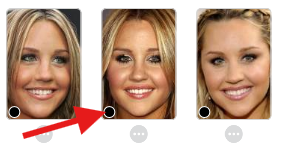
- Orange Dot: Imported from metadata — a face tag embedded in the photo (e.g., Picasa or Google Takeout) was imported and confirmed by TTP's face detection
- Black Dot: Detected by TTP only — found by TTP's face detection; no metadata tag existed
- Red Dot: Added manually in TTP
- Purple Dot: No recognition quality score — usually a metadata-only face that TTP's face detection could not confirm (often indicates a poor-quality picture)
Face Tagging Process
Starting with Unknown Faces
Begin your tagging journey in the Unknown tab.
Step 1: Remove Unwanted Faces
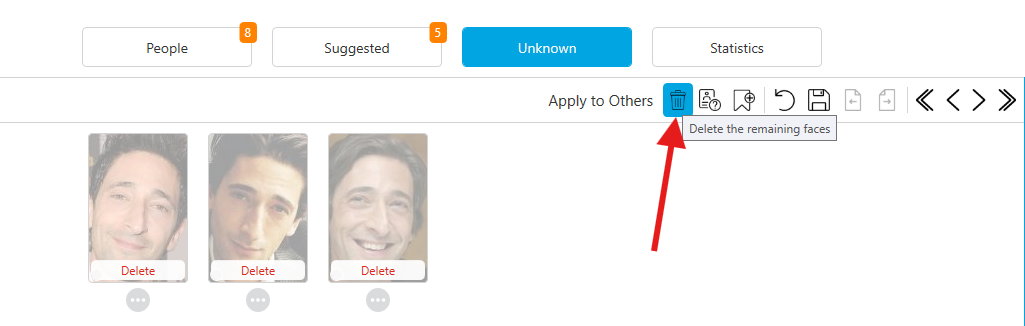
Remove faces you: - Don't recognize - Don't wish to tag - Know are false positives
Important: Removing a face removes it from the database but does NOT delete the photo. If you accidentally remove a face, open the photo in Photo Viewer and select "View > Show Deleted Faces" to restore it.
Step 2: Name Faces in Clusters
Clusters make tagging efficient by grouping similar faces together.
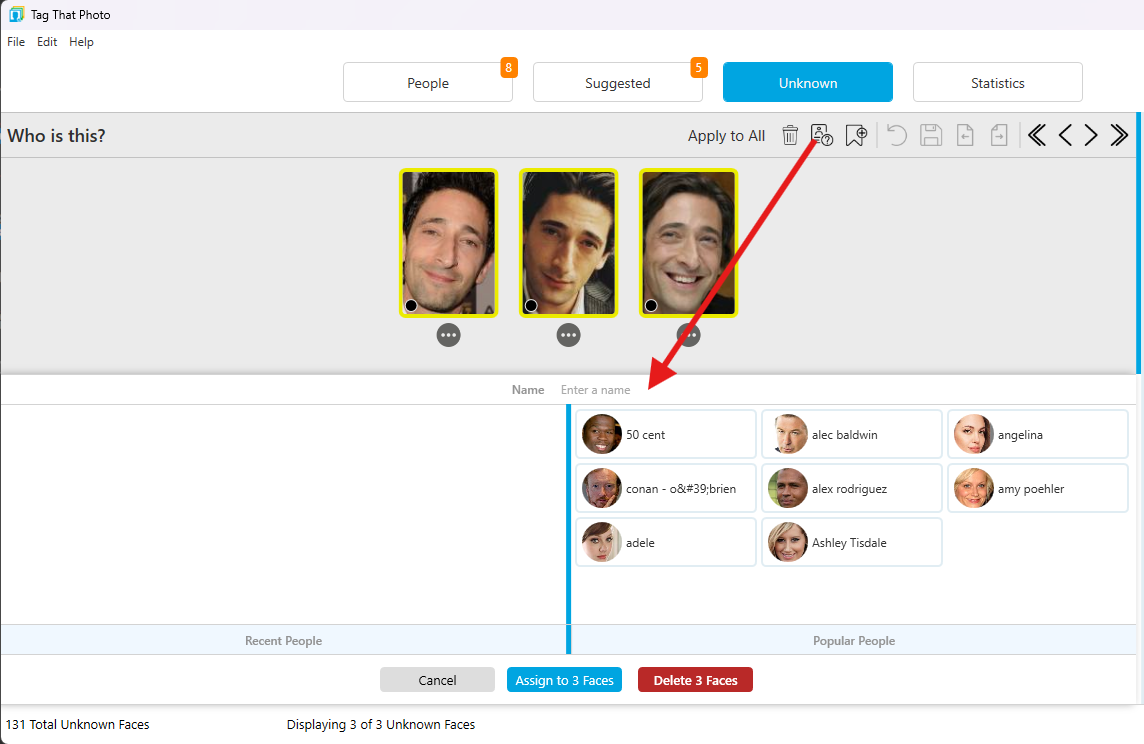
To name faces:
- Individual Face: Click the dot menu below the thumbnail, or press CTRL-N
- Multiple Faces: Select multiple thumbnails, then press CTRL-N or click menu
The Person Selector appears at the bottom showing: - Left Column: Recently tagged people (quick access) - Right Column: Most popular people (your most-tagged individuals) - Text Field: Type to search or create new name
When the Person Selector opens, keyboard focus is placed in the input box automatically so you can type immediately. The input placeholder text is now: Type to search or create a new person...
Typing Tips: - Type in any order: "smith m" or "mary s" both match "Mary Smith" - Partial matches appear in dropdown - you must type a min of 3 char to get matches - Select from dropdown or press Enter to create new person - A new face card will appear as an option if you don't have any previous tags for that person
If no existing match is found, a + Create New Person: "Typed Name" card appears at the top for one-click creation. Pressing Enter in the text box commits the current selection (or creates the typed person) and assigns the tag immediately.
Assign faces to a group (October 2026): Groups also appear in this chooser, labeled Group: Name and shown in the group color. Pick a group to place the selected faces in that group. Each face becomes its own auto-named person (for example Golfing_person_0001), so teammates are not merged into one identity. See Person Groups.
Step 3: Preview and Confirm
Click any face thumbnail to see a preview of the full image in the right pane.
The preview display can be resized: - Drag the border left or right - Expand to a max of half the screen width - Setting persists across sessions - Works in People, Suggestions, and Unknown views
Step 4: Review and Save
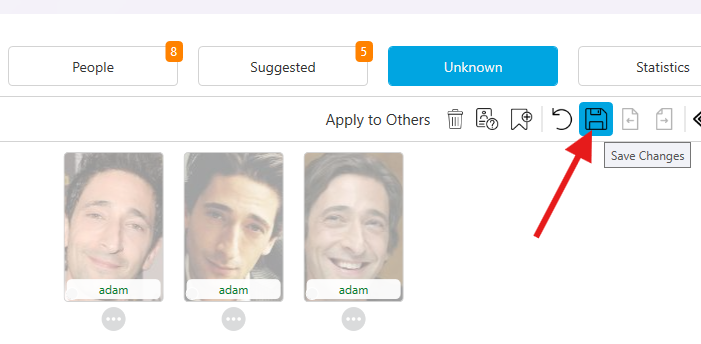
Before saving, you can: - Reset (↺): Clear all selections on current page - Change names: Click dot menu again to modify - Remove: Remove unwanted selections
Press Save, CTRL-S, or Enter to apply your tagging.
Processing Suggestions
As you tag Unknown faces, TTP generates Suggestions based on similarity to your tagged people. Open the Suggested tab to browse the person deck, then pick a person (or Lone Faces) to review. An "S" is displayed on each person thumbnail under the People tab if they have outstanding suggestions.
Best Practice: Process suggestions promptly. Each confirmed suggestion provides better training data for future suggestions.
Options while reviewing a person's suggestions:
- Confirm (CTRL-K or ✓): Face is correctly identified
- Reject (CTRL-X or ✗): Face is not this person; TTP won't suggest it again for them
- Remove (DEL): Remove face entirely from database
- Assign to another (CTRL-N): Face is someone else; assign correct name
- Save for Later: Not ready to decide
When you finish a person, use Back to All Suggestions to return to the deck.
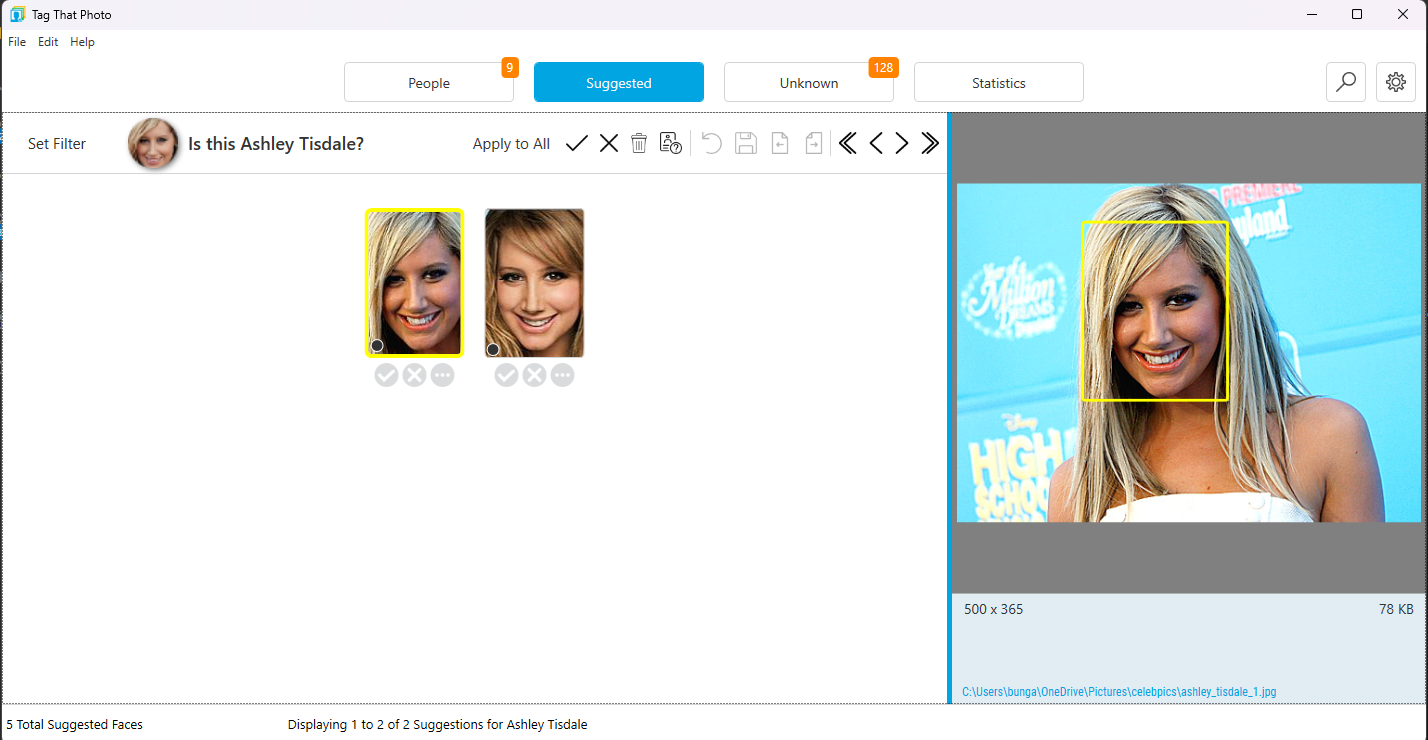
Tip: If you notice consistently poor suggestions for a person, review their favorite faces. Blurry, profile, or poor-quality favorites lead to bad suggestions. Edit favorites by viewing that person's faces and toggling the star icons. Only thumbnails with the star are used for recognition purposes.
Saved for Later
New in June 2026 - New dedicated "Saved For Later Tab: The Saved for Later feature has been elevated into its own dedicated tab in the main top-navigation menu. Rather than having to find these faces at the end of the Unknown tab, they are now directly accessible with their own count badge, customized empty-state messaging, and streamlined review flows.
Using Saved for Later
For Unknown Faces:
- When scrolling through small clusters becomes tedious.
- Select Edit > Save All For Later from the menu (under Unknown Faces).
- Faces move to the dedicated Saved for Later tab.
- Open the tab and scroll through full pages of thumbnails to quickly identify friends/family.
- When ready, use Edit > Remove All Saved For Later to clean up the remaining unidentified faces.
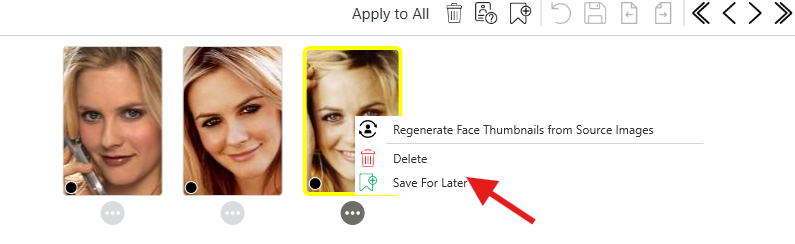
For Individual Faces (Unknown or Suggested):
- Right-click on any face thumbnail.
- Select Save for Later.
- The face is instantly moved to the Saved for Later tab.
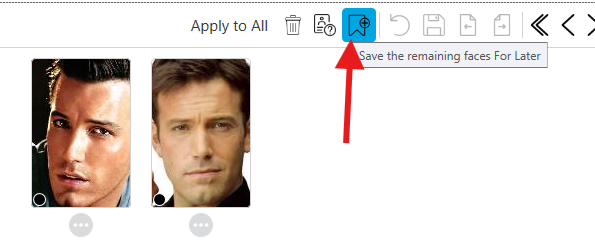
For Groups of Faces:
- View a page of Unknown faces
- Click the Save for Later icon in the top menu (or use CTRL-L)
- All faces on current page move to "Saved for Later" section
Note: Once deleted from "Saved for Later," those faces won't be available for future suggestions.
Date-Ordered Face Viewing
When viewing all faces for a specific person, they now display in image date order by default (previously sorted by date scanned).
Benefits
- See how a person has changed over time
- Easily spot duplicate or similar photos
- Better context for selecting favorite faces
- More intuitive organization
Sort Options
Toggle between two sorting modes using the sort pull-down menu.
- Date Order (Default): Faces sorted by photo date, oldest to newest
- Favorites: Favorite faces displayed first
Exporting Faces Chronologically
When you export face thumbnails for a person, they now export in image date order:
- Select one or more people
- Right-click and select Export Face Thumbnails
- Choose export folder (must be outside TTP monitored folders)
- Thumbnails export in chronological order
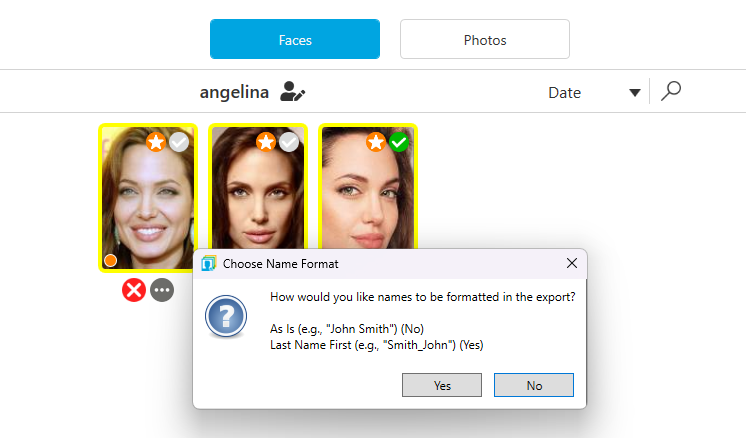
Creative Uses: - Create time-lapse GIFs showing person aging - Build photo collages in chronological order - Generate birthday slideshow sequences
Keyboard Shortcuts for Tagging
Thumbnail grid navigation (People, Suggestions, Unknown, Save for Later)
These keys apply on any screen that shows a paged grid of thumbnails — including the Suggestions person deck, a person's Faces and Photos pages, and Save for Later.
| Shortcut | Action |
|---|---|
| Arrow keys | Move among thumbnails on the current page |
| CTRL + Arrow keys | Same as arrow keys |
| Page Up / Page Down | Previous / next page of thumbnails |
| Mouse wheel | Previous / next page of thumbnails |
| Enter | Open the highlighted person (People or the Suggestions deck) |
Unknowns extra keys
| Shortcut | Action |
|---|---|
| Tab / Shift+Tab | Next / previous cluster (then Lone Faces, then Save for Later) |
| Alt + mouse wheel | Same as Tab / Shift+Tab |
Page Up / Page Down always stay in the current group. On Lone Faces or Save for Later they page that grid; they do not jump to another cluster.
Arrow keys in a name filter or other text box still move the caret. Page Up / Page Down still change thumbnail pages.
Tagging actions (People, Suggested, Unknown)
| Shortcut | Action |
|---|---|
| CTRL-K | Confirm/Accept selected faces (or all if none selected) |
| CTRL-X | Reject selected faces (or all if none selected) |
| CTRL-N | Open Person Selector to name selected faces |
| CTRL-D or CTRL-DEL | Remove selected faces |
| CTRL-T | View suggestions for selected person (People view only) |
| CTRL-L | Save marked faces for Later |
| CTRL-Z | Undo last action |
| CTRL-S or Enter | Save changes |
| ESC | Reset selections |
Efficient Workflows
Workflow 1: Unknown Cluster (10 faces, 2 unwanted) 1. Delete the 2 unwanted faces (DEL) 2. Click menu icon at top right 3. Select "Name all remaining faces" 4. Enter person's name 5. Press Enter to save
This is faster than individually selecting 8 faces with your mouse.
Workflow 2: Mixed Page of Singles 1. Quickly scan thumbnails 2. Name any recognized friends/family (CTRL-N on each) 3. Click Remove button (or DEL key) to remove remaining unknowns 4. Save (CTRL-S)
Workflow 3: Suggestion Review 1. Press CTRL-K to confirm all correct suggestions 2. Press CTRL-X to reject any incorrect ones 3. Press CTRL-N on misidentified faces to rename 4. Save (CTRL-S)
End of Part 2: Scanning & Face Tagging
Continue to Part 3: Working with People...