Click the Tools > Scheduler Profile > User Preferences category button sequence to display this information.
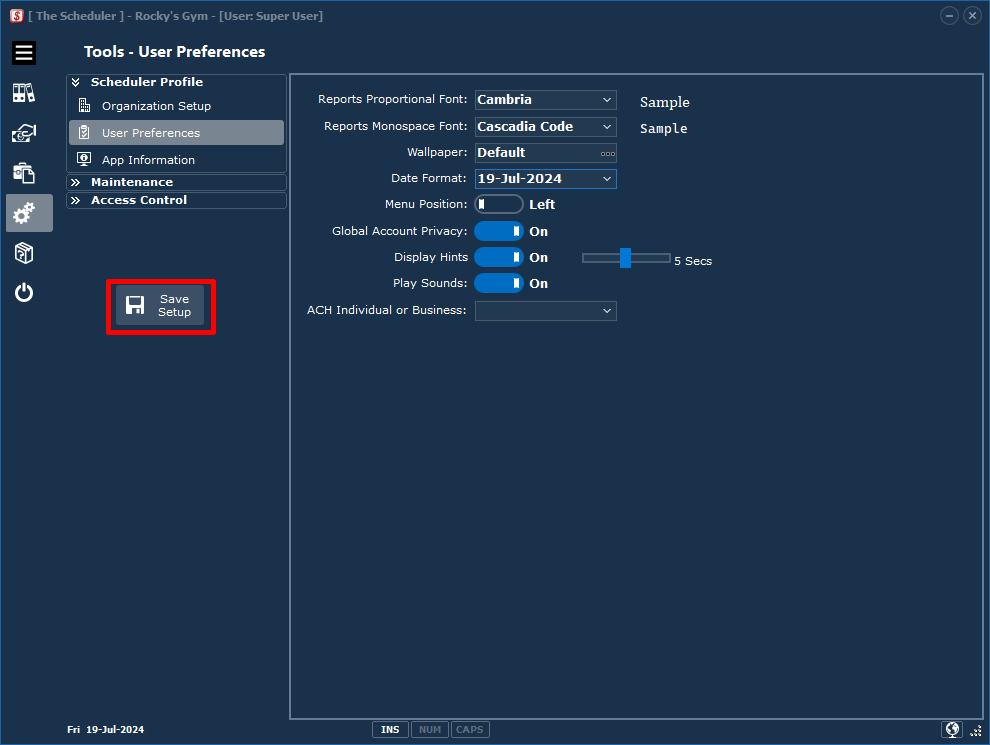
Reports Proportional Font |
Three Fonts are available. Click on the list box "down arrow" to choose desired font. Sample displayed. |
Reports Monospace Font |
Three Fonts are available. Click on the list box "down arrow" to choose desired font. Sample displayed. |
Wallpaper: |
If you have a favourite photo, you can change the wallpaper on the "Home" screen. See the User Images section for more details. |
Date Format: |
Select how you want dates displayed on The Scheduler forms and reports. |
Menu Position: |
Which side do you want the Category Buttons displayed? |
Global Account Privacy: |
The default in The Scheduler is to obfuscate banking information on reports. This can be changed only by users with "Administrator" rights. See the Access Control section for more information. |
Display Hints: |
Hovering the mouse over input fields will give more information. Turn off or alter the length of the display message. |
Play Sounds: |
Turn off The Scheduler confirmation beeps and warbles. |
Individual or Business: |
Select the Standard Entry Class (SEC) Code as per NACHA rules if ACH 94 EFT file format selected. |
Save your changes
Click the Save Setup button!